Google Vertex AI Using Managed Service Account
Google Vertex AI agents are supported by Zenity AI Detection & Response. Below are the technical steps required to set up permissions for Zenity into your organization Vertex AI resources.
Prerequisites
- Each GCP project to cover should have both billing enabled, and Vertex AI API enabled. More details in GCP documentation.
- list.projects api and Cloud Resource Manager API should be enabled on the project containing the service account created in step 1 below.
Step-by-step guide
Step 1: Create an organization level IAM role
- Go to IAM roles https://console.cloud.google.com/iam-admin/roles.
- Choose the organization level in the project selection as The IAM role should be created on the organization level in order to be able to access all projects using Vertex AI.
- Click “Create role”
- Name your role and add the following permissions one by one by clicking “Add permissions”
| Permission | Purpose |
|---|---|
| Resourcemanager.projects.list Resourcemanager.projects.get | To be able to identify all projects in the GCP organization. |
| Aiplatform.locations.list aiplatform.sessions.list Aiplatform.sessions.get Aiplatform.reasoningEngines.list Aiplatform.sessionEvents.list | Fetch runtime interaction data from AI Foundry agents such as threads, runs, messages etc. |
- Click “Create”.
Step 2: connect the newly created role with Zenity's service account
This step grants the service account the permissions defined in the IAM role over the scope of the entire organization.
- Go to https://console.cloud.google.com/iam-admin/iam
- Click “Grant Access”
- Insert Zenity's service account
vertex-client@vertex-ai-5393731.iam.gserviceaccount.comand choose the role. Click Save.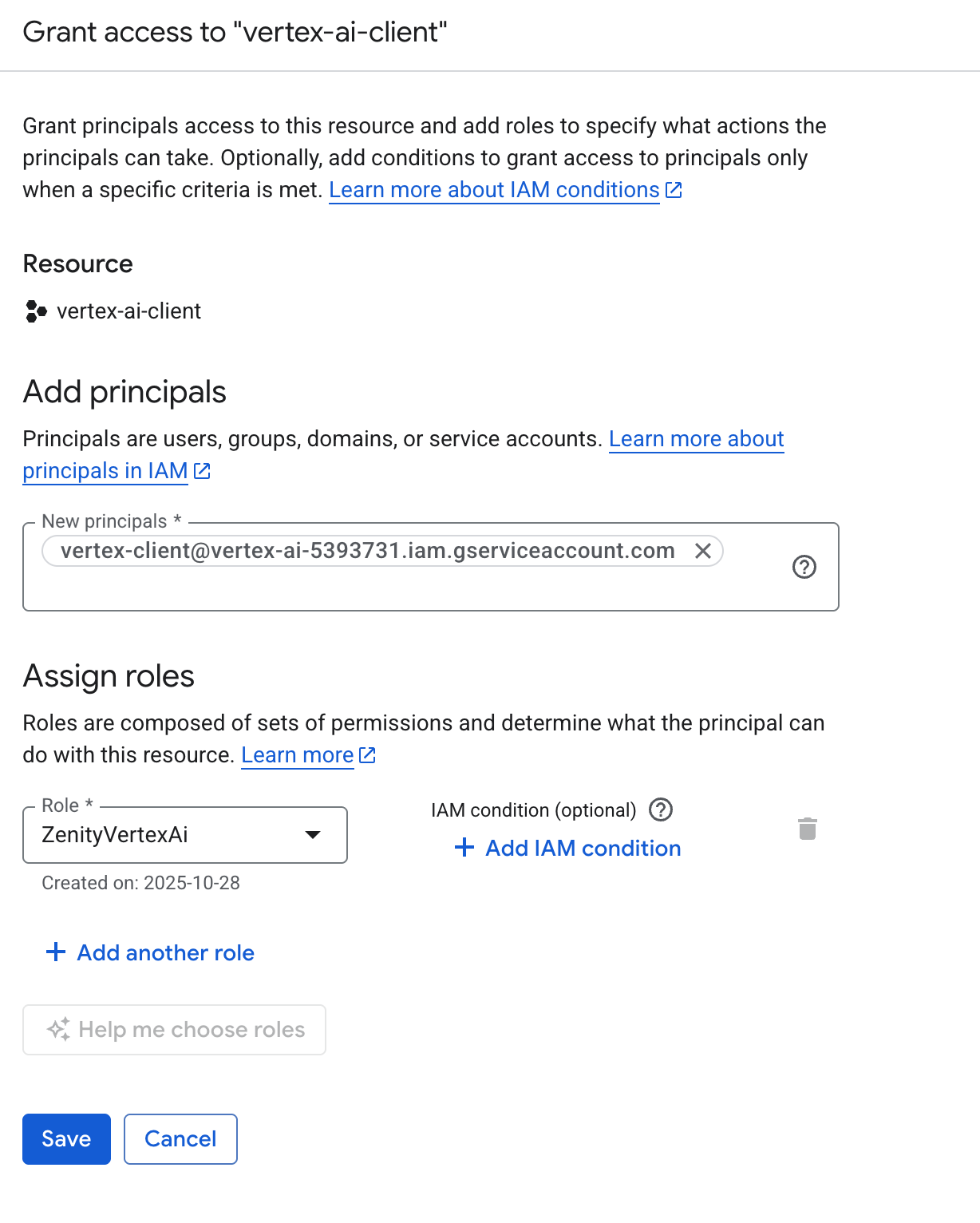
Step 3: integrate the service account to Zenity
- Sign into Zenity portal, go to Integrations page, click Create new and select Google platform.
- Select the "Managed Service Account" option and insert the Organization ID.
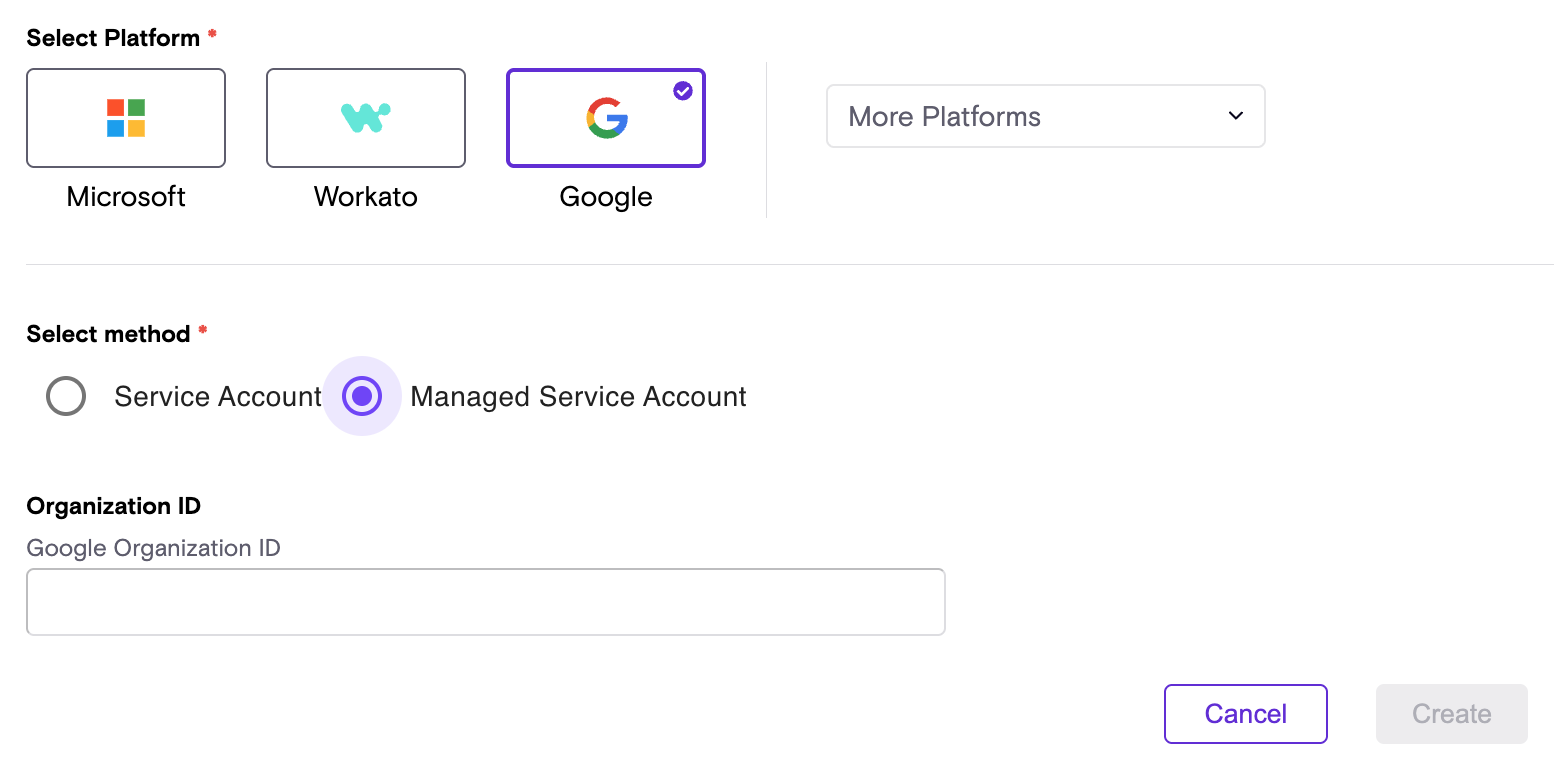
- Click Create.
Notes:
- Projects not having billing enabled, or vertex AI API enabled are skipped by Zenity when applying its event streaming.