Single Sign-On Configuration — Okta
1. Create a New App Integration in Okta
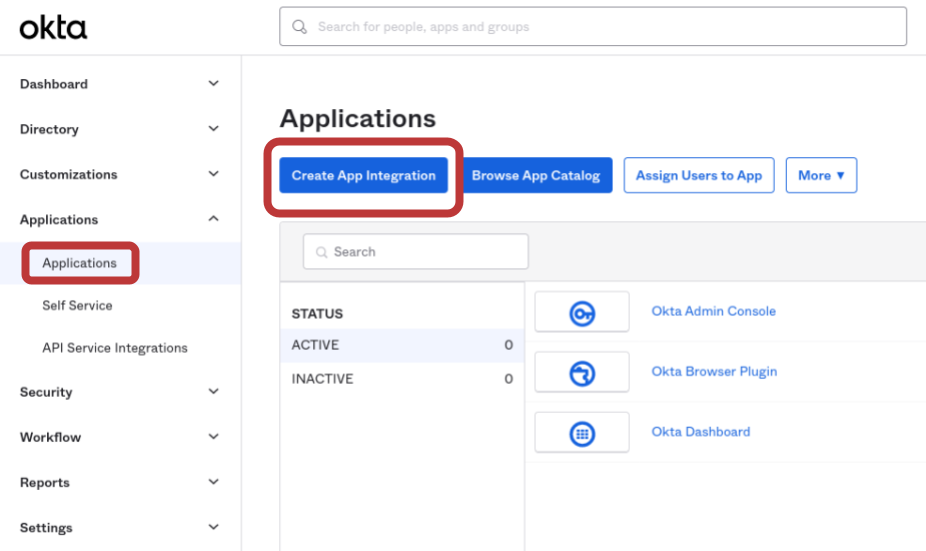
- Log in to your Okta Admin Console.
- Go to Applications → Applications.
- Click Create App Integration (or Add Application → Create New App).
- Choose the protocol:
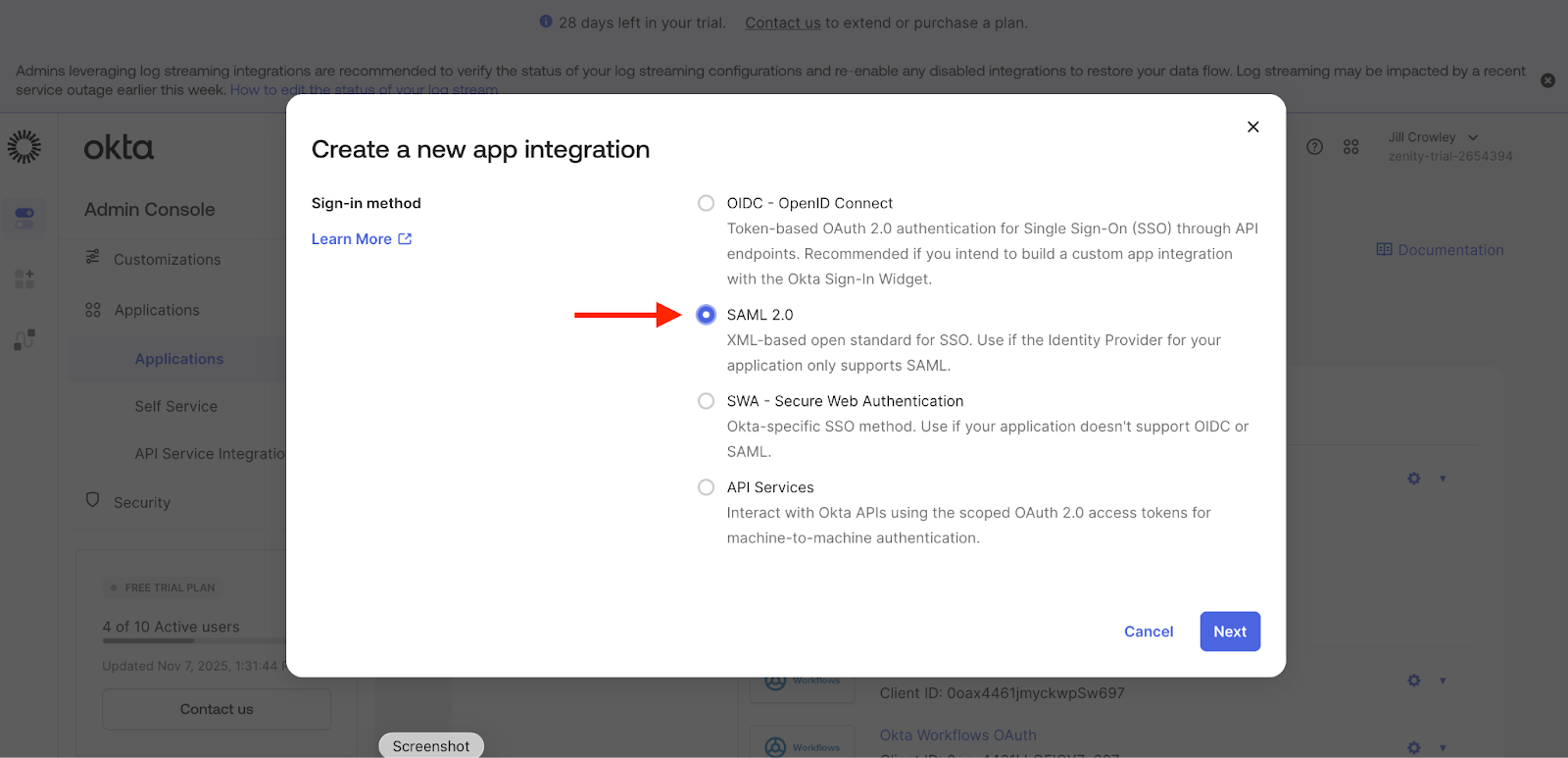
- SAML 2.0, then click Next.
- Fill in the General Settings:
- Name: e.g.,
Zenity-SSO 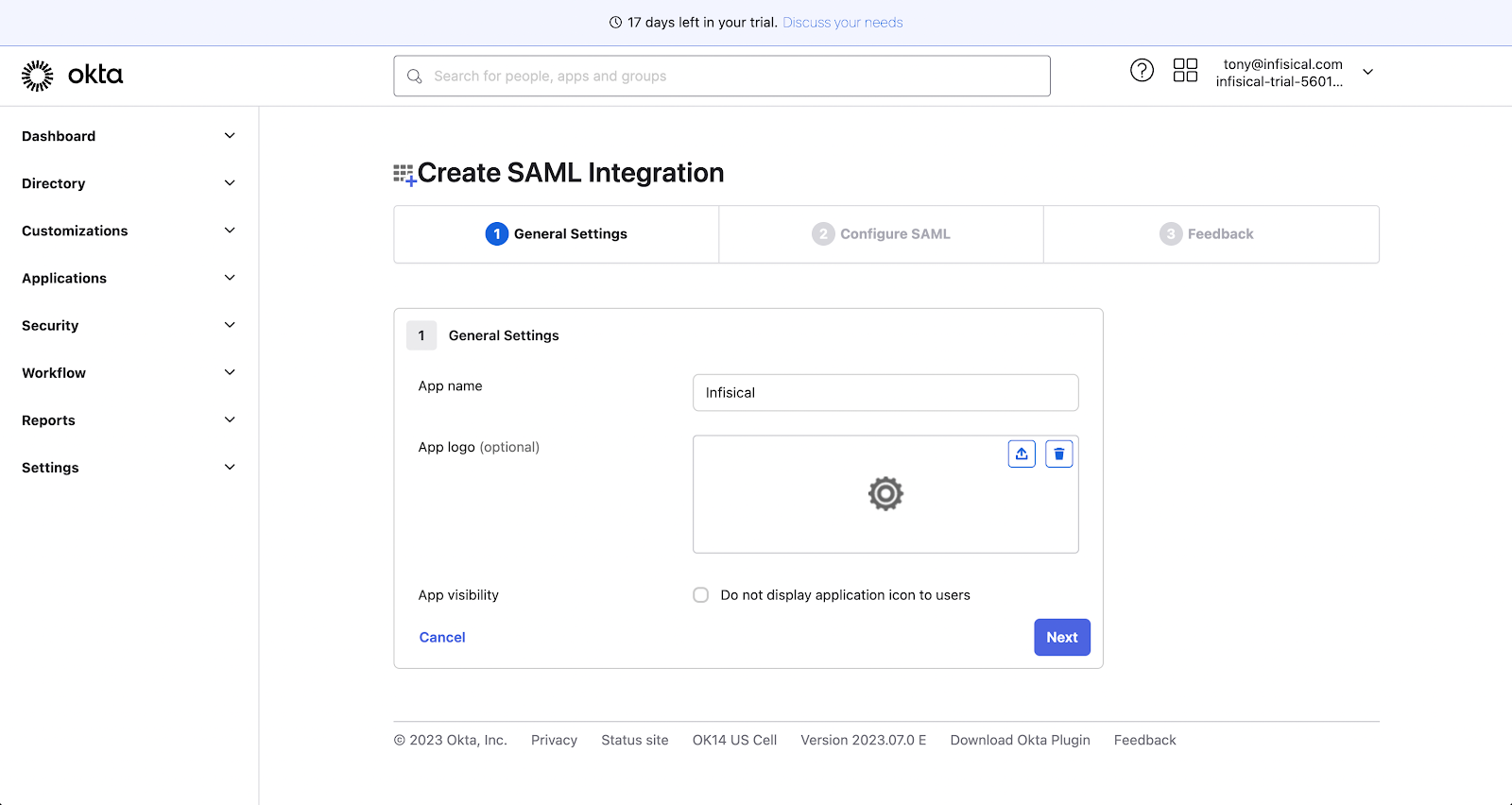
- Name: e.g.,
2. Configure the SAML Settings
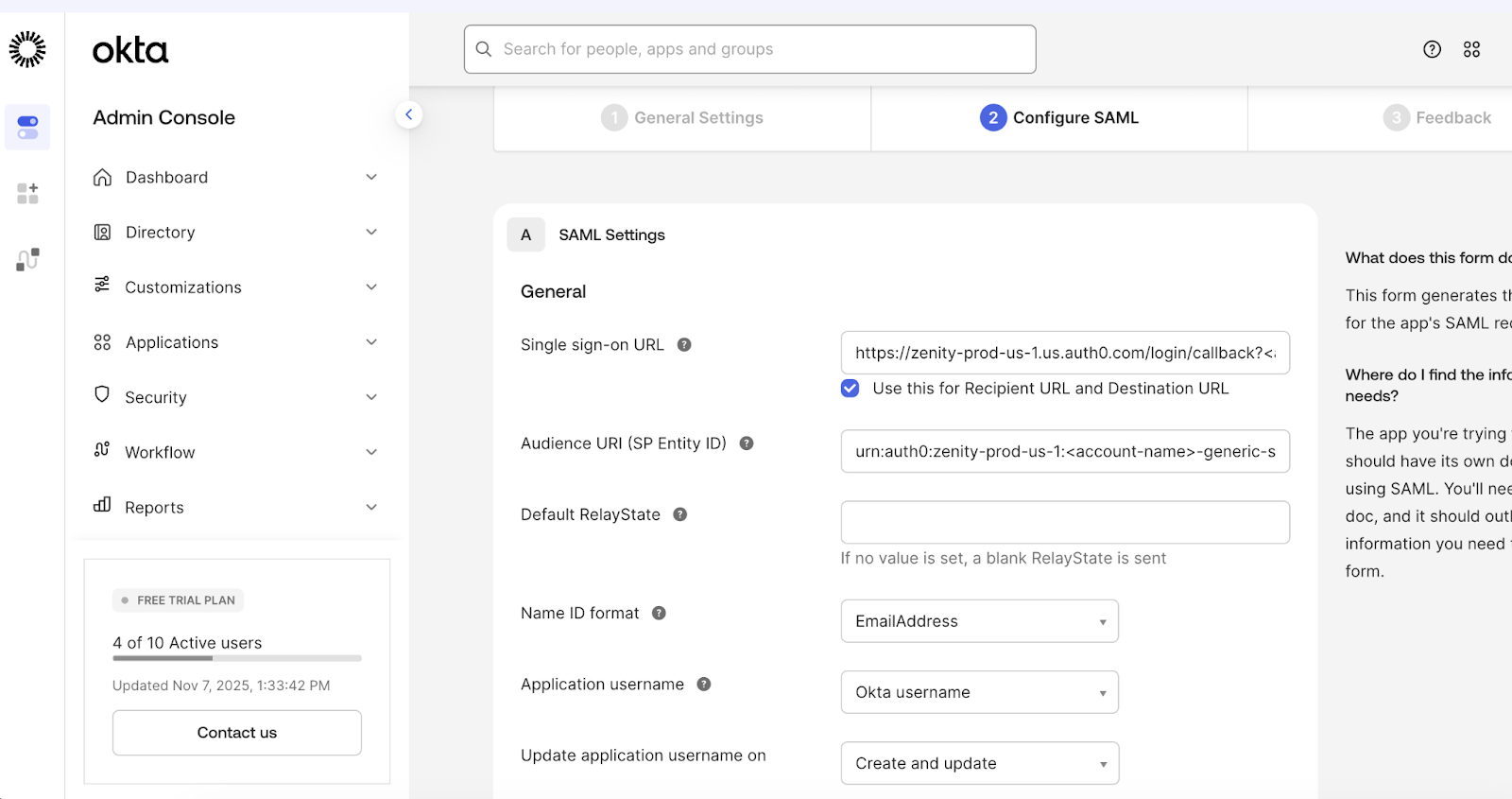
In the SAML Settings screen, enter the following:
Single Sign-On URL (ACS URL)
- EU Hosting Region:
https://zenity-prod.eu.auth0.com/login/callback?<account-name>-saml-okta - US Hosting Region:
https://zenity-prod-us-1.us.auth0.com/login/callback?<account-name>-saml-okta
Audience URI (SP Entity ID)
- EU Hosting Region:
urn:auth0:zenity-prod:<account-name>-saml-okta - US Hosting Region:
urn:auth0:zenity-prod-us-1:<account-name>-saml-okta
Additional Settings
- Check Use this for Recipient URL and Destination URL if applicable.
- Set the Name ID format to
EmailAddress. - Set Application username to
Okta username(or as required).
Configure Attribute Statements
| Attribute Name | Value |
|---|---|
| user.email | |
| name | user.firstName + " " + user.lastName |
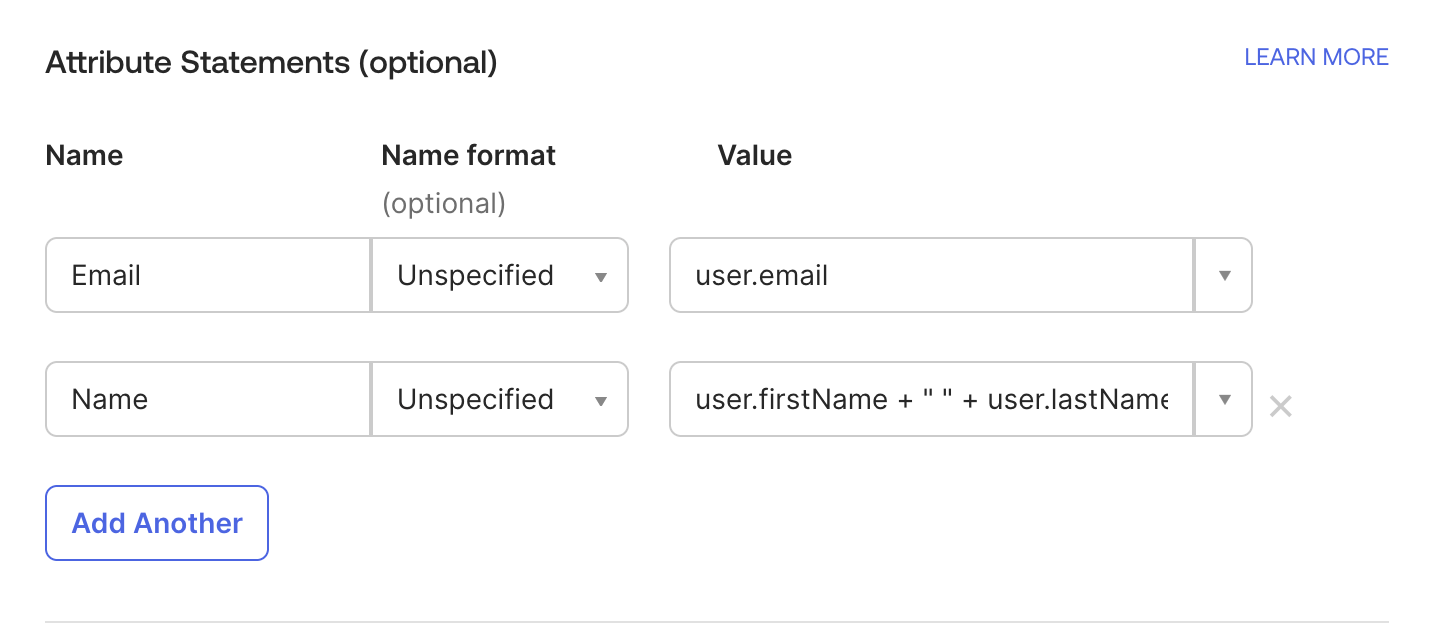
After completing the fields, click Next → Finish.
3. Assign the Application to Users or Groups
- Go to the Assignments tab in your new app.
- Click Assign → Assign to People (or Groups).
- Select the users or groups that should have access.
- Save the assignments and confirm that users can see the app in their Okta dashboard.
4. Collect Metadata and Certificates for the Service Provider
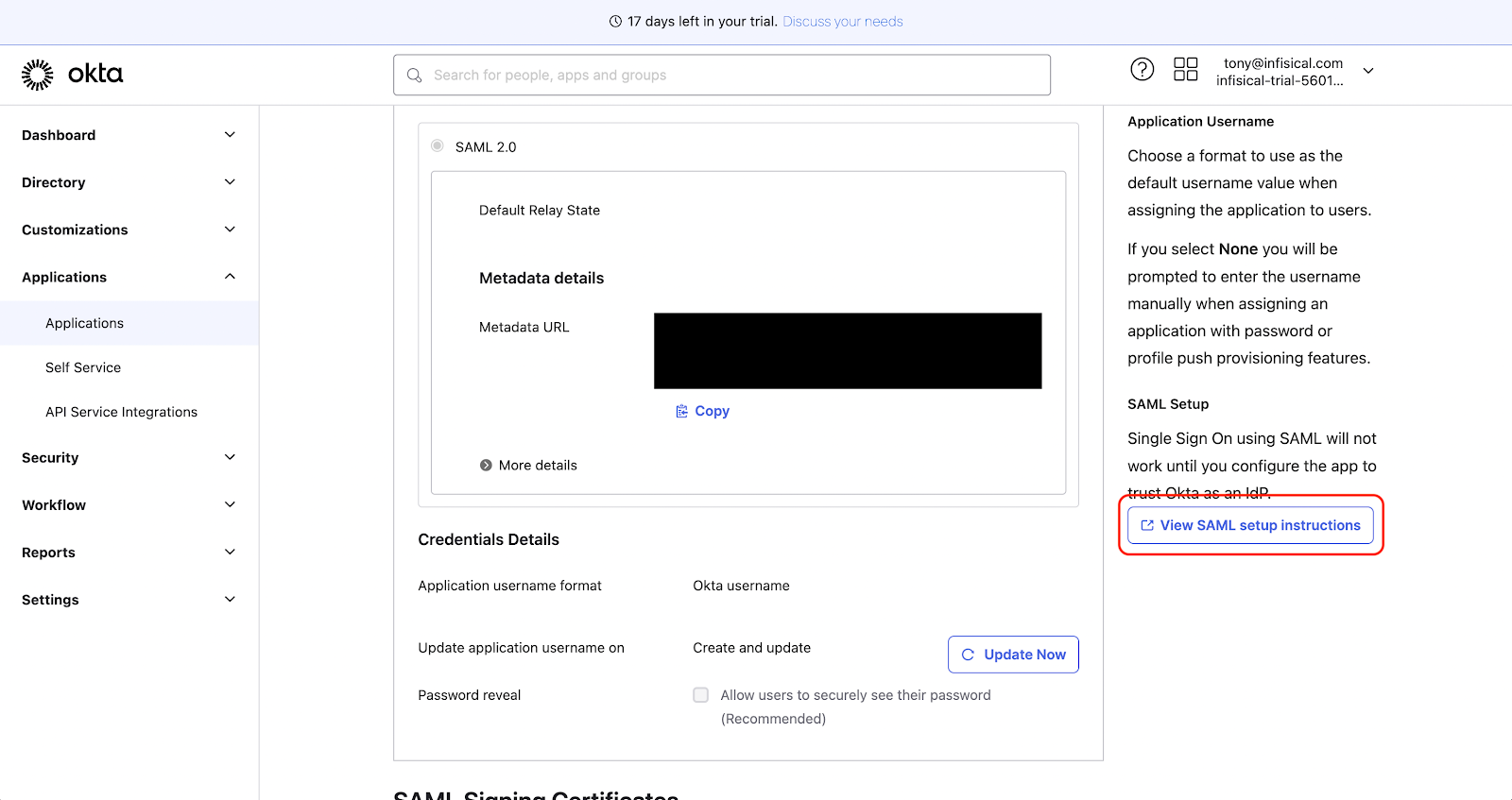
- Open the app’s Sign On tab and click View Setup Instructions (for SAML).
- Copy the following:
- Identity Provider SSO URL
- X.509 Certificate (Base64)
- Provide these details to your Service Provider.
- If requested, download the metadata XML from Okta.
5. Test the SSO Integration
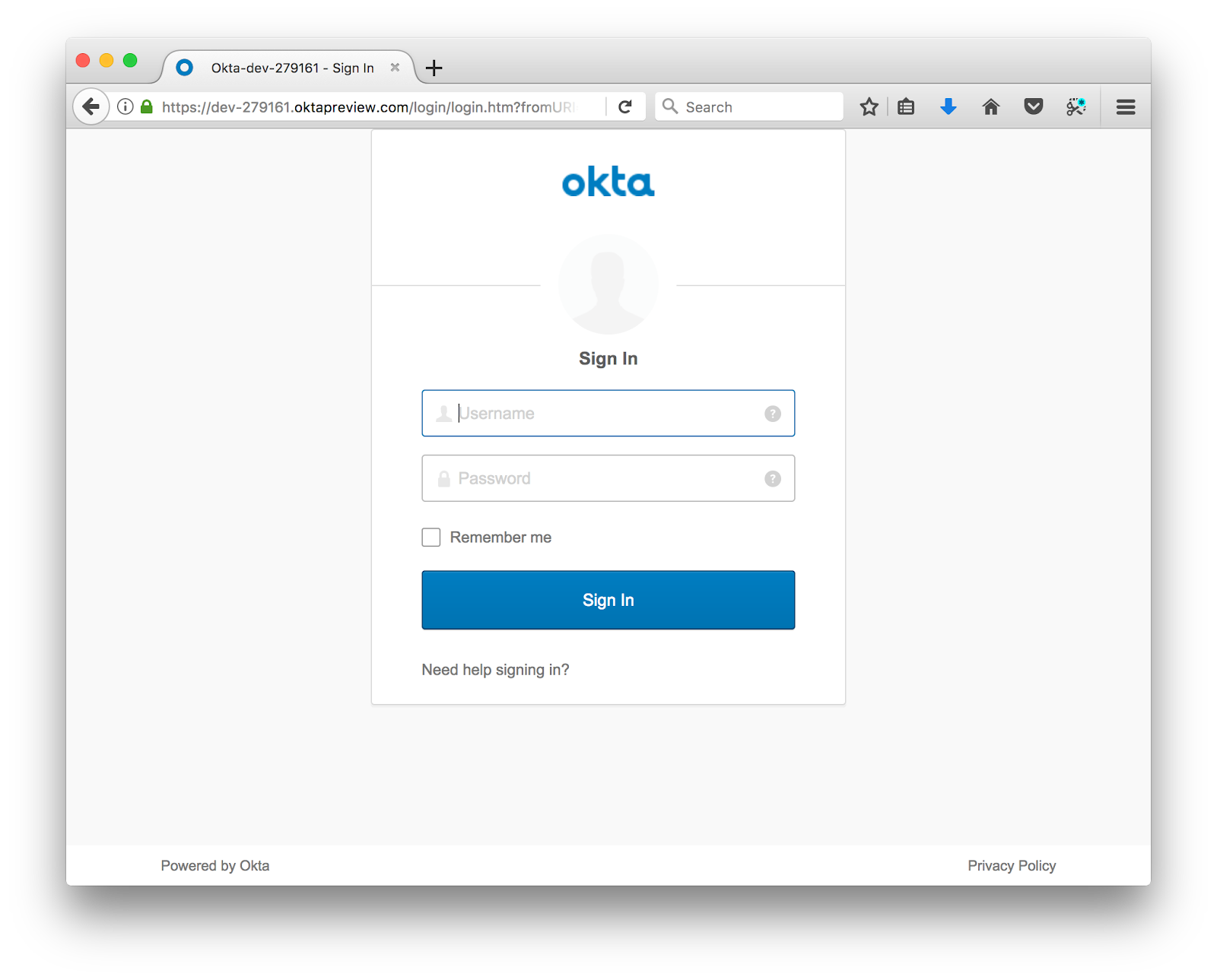
- As an assigned user, attempt to log in to the app via Okta.
- Verify successful redirection and authentication.
- If issues arise, check for:
- Incorrect Redirect or ACS URLs
- Missing user assignments
- Invalid or expired certificates
- Name ID format mismatches